TeamViewer: Update/Install and Assign
-
Advanced customization: TeamViewer install + assignment (PatchPro / VulnDetect)
This approach is for customers who want to run a PowerShell script as the installer (instead of running the MSI/EXE directly). The script installs TeamViewer from an MSI placed in the same working directory and then runs a TeamViewer assignment command.
Important: the PowerShell script MUST be the primary installer. The MSI must be included as an additional file.
PatchPro Instructions
1. Create a new text document containing the script below.
2. Save the file as a PowerShell script (.ps1), e.g.:
TVInstallAndAssign.ps1
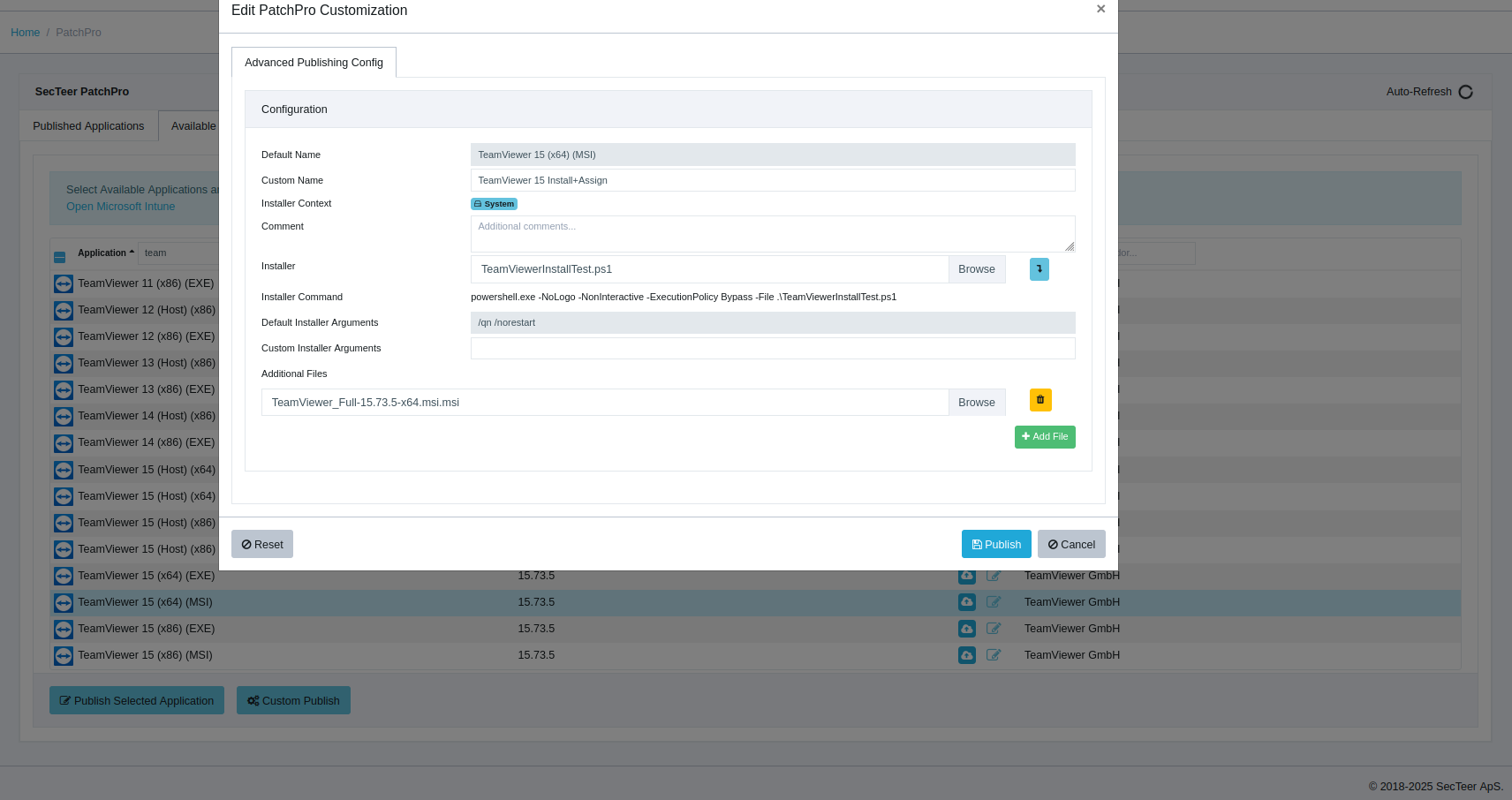
3. Navigate to Available Applications and select TeamViewer 15 (x64) (MSI).
4. Click Custom Publish.
5. Click the downward arrow next to the Browse icon to move the TeamViewer installer into Additional Files.
6. Click the Browse icon and select your .ps1 script.
7. Remove any custom installer arguments like /qn /norestart (the script handles msiexec arguments).
8. Give the deployment a name and click Publish.
VulnDetect - Advanced Customization Instructions
This method uses a PowerShell script as the installer. The script installs TeamViewer from an MSI placed in the working directory and then performs the assignment.
The PowerShell script must be the installer. If it is not moved into the installer position, it will not execute.
1. Create a new text document containing the script below.
2. Save the file as a PowerShell script (.ps1), for example:
TVInstallAndAssign.ps1
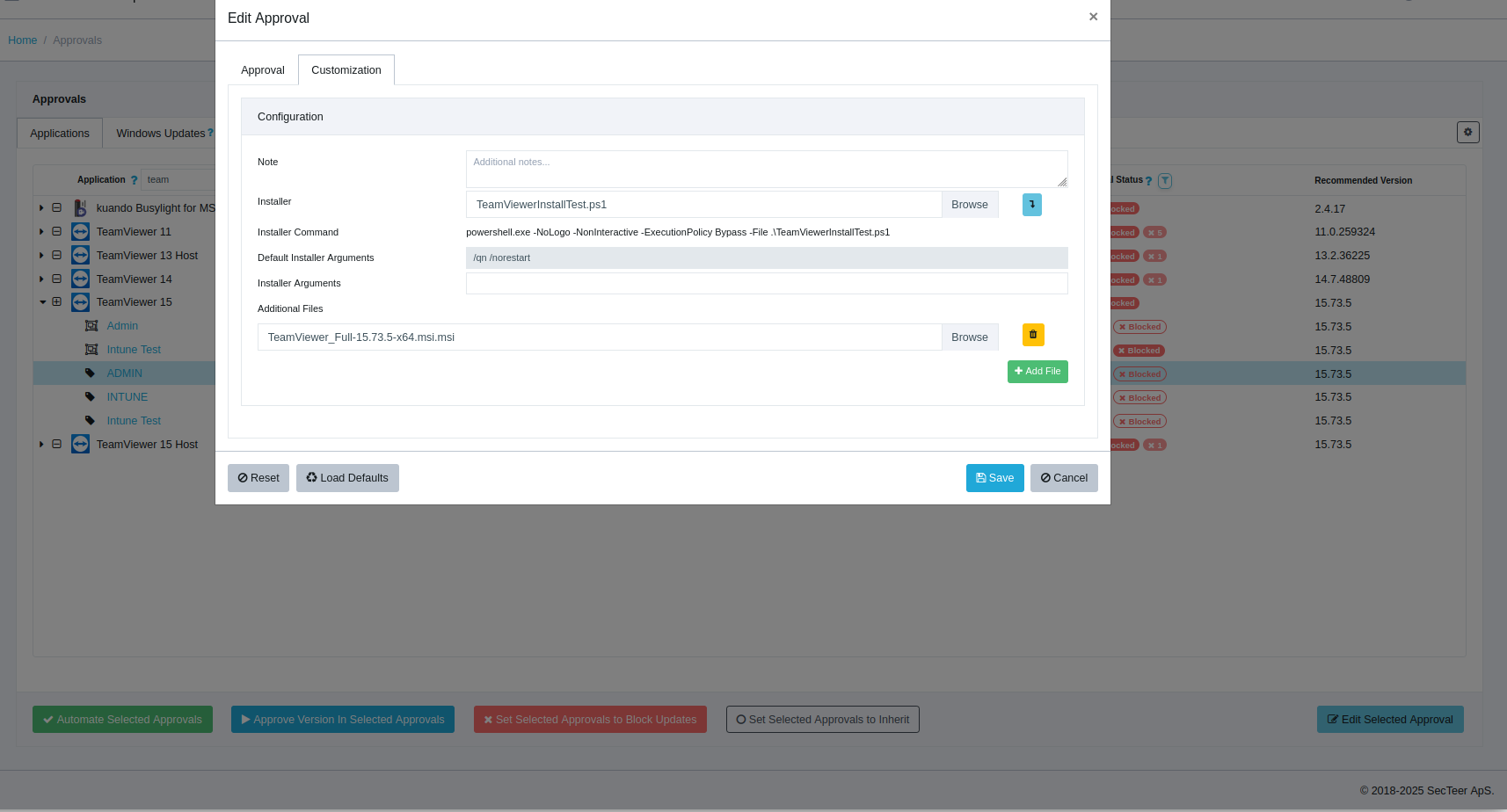
3. Navigate to Approvals and edit the desired Tag Approval.
4. Move the TeamViewer installer down using the blue arrow button.
5. Click Choose File and select your .ps1 script (this must be the installer).
6. Remove any installer arguments (these are handled by the PowerShell script).
7. Click Save.
Prerequisites (read this)
• The script expects the TeamViewer MSI to be included as an Additional File in the same working directory as the script.
• MSI exit code 3010 is treated as success (reboot required) and will be returned as the script exit code.
• The script fails if assignment does not complete successfully (non-zero exit code or timeout).
• Replace the assignment id/token placeholder before publishing.
Note: The assignment method varies depending on license type, this is just an example for a specific license type.# # ========================================== # SecTeer: TeamViewer Install (MSI) + Assignment # ========================================== $ScriptDir = Split-Path -Parent $MyInvocation.MyCommand.Path $LogFolder = "C:\Windows\Logs\SecTeer" $LogFile = Join-Path $LogFolder "TeamViewer-assign.log" # --- Ensure log folder exists --- if (-not (Test-Path $LogFolder)) { New-Item -Path $LogFolder -ItemType Directory -Force | Out-Null } function Write-Log { param([string]$Message) "[$(Get-Date -Format 'yyyy-MM-dd HH:mm:ss')] $Message" | Out-File -FilePath $LogFile -Append -Encoding UTF8 } Write-Log "Script started" # --- CONFIG: assignment token (MUST be replaced before deployment) --- $AssignmentArgs = 'assignment --id REPLACE_WITH_REAL_ASSIGNMENT_TOKEN' # Fail fast if placeholder still present if ($AssignmentArgs -match 'REPLACE_WITH_REAL_ASSIGNMENT_TOKEN') { Write-Log "ERROR: Assignment token placeholder not replaced. Aborting." exit 1 } # --- Locate MSI next to this script (supports .msi and .msi.msi) --- $MsiMatches = Get-ChildItem -Path $ScriptDir -File | Where-Object { $_.Name -match '^TeamViewer.*\.msi(\.msi)?$' } if (-not $MsiMatches -or $MsiMatches.Count -eq 0) { Write-Log "ERROR: No TeamViewer MSI found in $ScriptDir" Get-ChildItem -Path $ScriptDir -File | ForEach-Object { Write-Log "Found file: $($_.Name)" } exit 1 } if ($MsiMatches.Count -gt 1) { Write-Log "ERROR: Multiple TeamViewer MSI files found:" $MsiMatches | ForEach-Object { Write-Log " - $($_.FullName)" } exit 1 } $MsiPath = $MsiMatches[0].FullName Write-Log "Using MSI: $MsiPath" # --- Install TeamViewer --- Write-Log "Starting TeamViewer MSI installation" $msiArgs = "/i `"$MsiPath`" /qn /norestart" $msiProc = Start-Process -FilePath "$env:WINDIR\System32\msiexec.exe" ` -ArgumentList $msiArgs ` -Wait ` -NoNewWindow ` -PassThru $msiCode = [int]$msiProc.ExitCode Write-Log "MSI exited with code: $msiCode" # Accept 0 (success) and 3010 (success, reboot required) if ($msiCode -ne 0 -and $msiCode -ne 3010) { Write-Log "ERROR: MSI installation failed" exit $msiCode } # --- Allow post-install finalization --- Start-Sleep -Seconds 10 # --- Locate TeamViewer executable --- $TvExeCandidates = @( "C:\Program Files\TeamViewer\TeamViewer.exe", "C:\Program Files (x86)\TeamViewer\TeamViewer.exe" ) $TvExe = $TvExeCandidates | Where-Object { Test-Path $_ } | Select-Object -First 1 if (-not $TvExe) { Write-Log "ERROR: TeamViewer executable not found" $TvExeCandidates | ForEach-Object { Write-Log "Checked: $_" } exit 1 } Write-Log "Using TeamViewer executable: $TvExe" # --- Assignment --- Write-Log "Starting TeamViewer assignment" Write-Log "Executing: `"$TvExe`" $AssignmentArgs" $tvProc = Start-Process -FilePath $TvExe ` -ArgumentList $AssignmentArgs ` -PassThru ` -NoNewWindow $TimeoutMs = 120000 if (-not $tvProc.WaitForExit($TimeoutMs)) { Write-Log "ERROR: Assignment timed out after $([int]($TimeoutMs/1000)) seconds" try { $tvProc.Kill() } catch {} exit 1 } $tvCode = [int]$tvProc.ExitCode Write-Log "Assignment exited with code: $tvCode" if ($tvCode -ne 0) { Write-Log "ERROR: TeamViewer assignment failed" exit $tvCode } Write-Log "TeamViewer installation and assignment completed successfully" # Per requirement: propagate installer exit code exit $msiCode
Hello! It looks like you're interested in this conversation, but you don't have an account yet.
Getting fed up of having to scroll through the same posts each visit? When you register for an account, you'll always come back to exactly where you were before, and choose to be notified of new replies (either via email, or push notification). You'll also be able to save bookmarks and upvote posts to show your appreciation to other community members.
With your input, this post could be even better 💗
Register Login