Adobe Creative Suite Step 1/2 (All Apps) - Uninstall
-
In order to uninstall the Adobe Creative Suite silently using the Custom Software feature, you need to download the following ZIP file:
https://helpx.adobe.com/content/dam/help/en/enterprise/using/uninstall-creative-cloud-products/jcr_content/root/content/flex/items/position/position-par/download_section/download-1/Uninstall_win_pkg_All_Apps.zipOnce extracted, you need two files:
AdobeCCUninstaller.exe
AdobeCCUninstallerConfig.xmlThe XML file must be added as an "Additional Files":
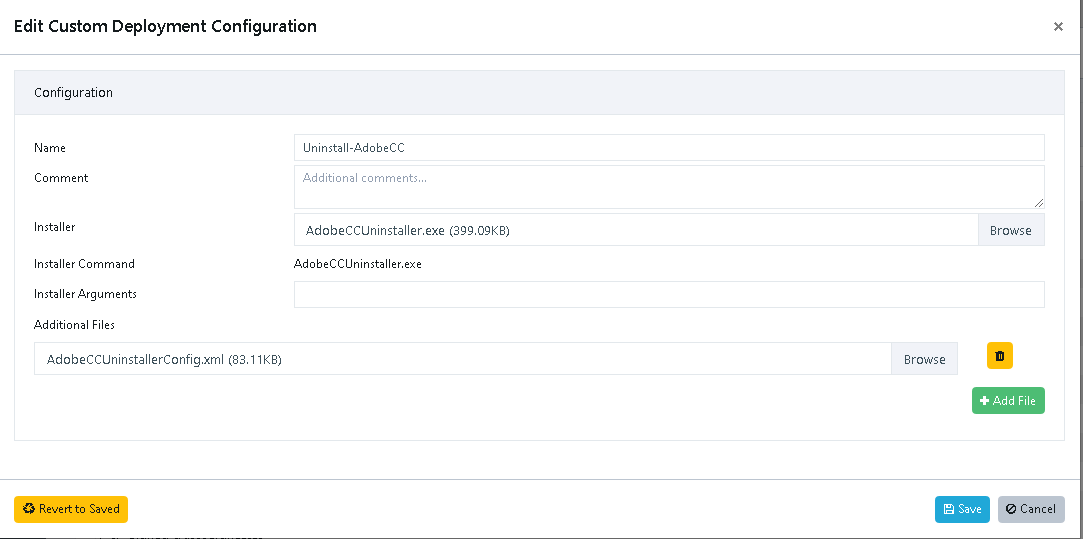
You are now ready to assign it to one or more hosts and inspect, in order to uninstall.
Do not add any arguments, contrary to the documentation we found, the uninstaller doesn't treat arguments well and it will fail. It appears to be silent by default (i.e. it only outputs to the console, not to the UI, so your users won't see it. Console output is captured by the package manager and submitted to the VulnDetect backend.).
Note that uninstalling the entire suite takes a long time, just like installing it takes a long time.
Once this step has completed you might need to proceed to uninstalling the Adobe Creative Cloud Desktop App as it isn't always removed during this step.
-
T Tom referenced this topic on
Hello! It looks like you're interested in this conversation, but you don't have an account yet.
Getting fed up of having to scroll through the same posts each visit? When you register for an account, you'll always come back to exactly where you were before, and choose to be notified of new replies (either via email, or push notification). You'll also be able to save bookmarks and upvote posts to show your appreciation to other community members.
With your input, this post could be even better 💗
Register Login